
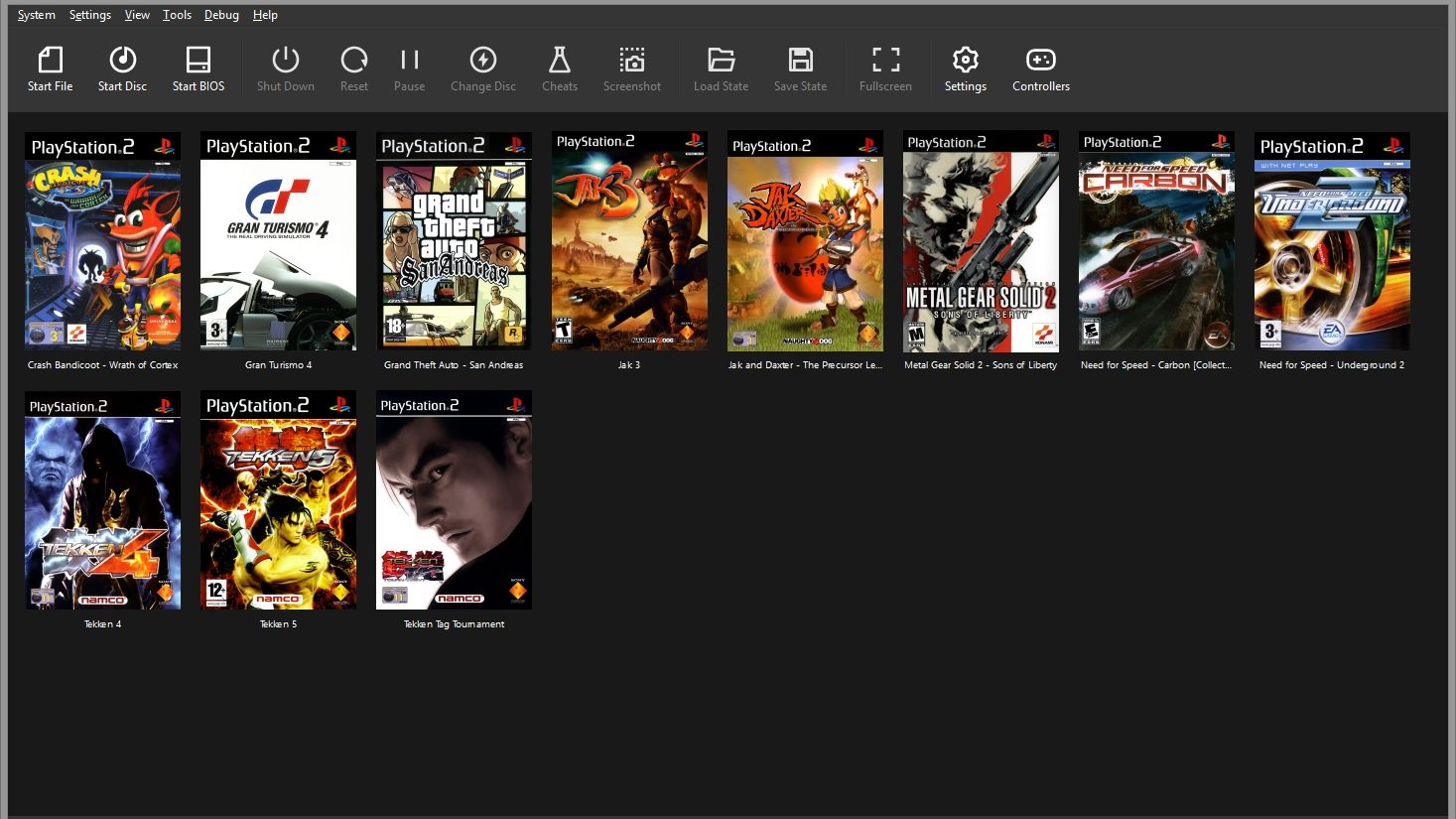
If you’ve ever tried reliving your classic PlayStation 2 gaming memories on a PC, you’ve probably come across PCSX2—the most popular PS2 emulator out there. It’s fast, flexible, and incredibly powerful. However, one thing that often trips people up is the PCSX2 BIOS setup. It sounds technical, and if you’re new to emulation, it can definitely feel confusing. But once you understand how the BIOS works and how to configure it properly, PCSX2 becomes a smooth, high-performance experience.
In this guide, we’ll break down what the PCSX2 BIOS is, why it’s important, how to set it up correctly, and how you can optimize your overall performance. By the end, you’ll feel confident and ready to enjoy your PS2 library without hiccups.
What Is the PCSX2 BIOS and Why Is It Necessary?
Most beginners assume that installing PCSX2 is enough to get started. But unlike many modern emulators, PCSX2 cannot run any PS2 game without a BIOS file. The BIOS (Basic Input/Output System) acts as the operating system for PlayStation 2 hardware. Without it, the emulator has no idea how to boot the system, read game discs, or communicate with memory cards.
The Role of the BIOS in Emulation
The BIOS is essentially the software that tells the emulator how to behave like a real PS2. When you launch a game, the BIOS handles low-level tasks such as initialization, system settings, region compatibility, and more. This is why having the right BIOS matters—if the file is outdated, corrupted, or mismatched, you’ll run into various issues like freezing, black screens, or incorrect performance.
The PCSX2 BIOS functions almost identically to the one stored inside a real PS2 console. It contains Sony’s proprietary firmware, so the emulator cannot legally distribute it. That’s why you must dump the BIOS from your own PlayStation 2. It may feel like an extra step, but it ensures legal compliance and accurate emulation.
Region Matters More Than You Think
One thing that surprises many users is that PS2 BIOS files come in different regions—USA, Europe, Japan, China, and so on. These regional BIOS versions affect how games load, what language options appear, and even the performance of certain titles. Using a U.S. BIOS with PAL games or vice versa sometimes results in awkward behavior, slowdowns, or timing issues.
That’s why PCSX2 recommends having multiple BIOS regions available. The emulator automatically chooses the most compatible one, giving you the smoothest possible gameplay experience.
How to Legally Obtain and Dump a PCSX2 BIOS
Before diving into performance tweaks, you need to get your BIOS files set up. Because Sony owns the firmware, downloading PCSX2 BIOS files from the internet is not legal. PCSX2 only works when you’ve dumped the BIOS from your own PS2 console. Thankfully, the process is easier today than it used to be.
Why You Should Avoid Downloading BIOS Files Online
Many websites offer “PCSX2 BIOS packs,” but they are usually unsafe, outdated, or filled with malware. Using these files can also lead to bugs and performance issues because they’re often mismatched or incomplete. More importantly, it violates copyright law.
Dumping the BIOS from your own console ensures accuracy, safety, and legal compliance. And because every PS2 console shipped with a BIOS, you already have everything you need—you just have to extract it.
The Tools Needed for BIOS Dumping
You’ll need:
- A physical PlayStation 2 console
- A USB flash drive
- A tool like BIOS Dumper, Free McBoot, or uLaunchELF
- A PC to transfer the BIOS files
- The PCSX2 emulator installed
These tools allow your PS2 to copy its internal BIOS to your USB drive. The output usually includes files like SCPH-70012.bin, ROM1.bin, and EROM.bin, which PCSX2 needs to function properly.
Dumping the BIOS Step by Step
- Install Free McBoot on your PS2 memory card.
This enables homebrew apps without hardware modifications. - Launch uLaunchELF through Free McBoot.
uLaunchELF gives you full access to your PS2’s internal files. - Run the BIOS dumper tool and follow the on-screen instructions.
The tool copies all required BIOS components onto your USB drive. - Transfer the dumped BIOS files from your USB stick to your PC.
Keep them in a clearly labeled folder. - Load them in PCSX2 by navigating to Config → BIOS/Plugins → BIOS.
After this, PCSX2 will detect your BIOS files, and you’ll be ready to move on to performance optimization.
Setting Up PCSX2 BIOS Correctly for Smooth Gameplay
Once you have your BIOS files ready, the next step is configuring them inside PCSX2. A proper setup can eliminate common issues such as boot errors, game crashes, and slow performance.
Choosing the Correct BIOS Region
Inside the BIOS selection window, you’ll see a list of all available BIOS dumps. If you’ve dumped multiple regions, PCSX2 allows you to switch between them. For the best results:
- Use NTSC-U for American games
- Use PAL for European games
- Use NTSC-J for Japanese imports
Mixing regions doesn’t always break the emulator, but it can cause video timing mismatches. This usually shows up as audio sync issues or slow-motion gameplay.
Setting the System Language
PCSX2 lets you adjust the BIOS system language. While this doesn’t directly affect performance, it can impact game menus, subtitles, and in-game prompts. Some PS2 titles automatically switch languages depending on BIOS settings, so it’s worth configuring this before playing.
Memory Card Management through BIOS
The BIOS manages PS2 memory cards exactly like the real console. Inside PCSX2, you can:
- Format memory cards
- Create new cards with adjustable storage
- Move, copy, or delete saved files
Proper memory card settings help avoid corrupted saves and give you more control over your game data.
Optimizing PCSX2 Performance with BIOS and Settings Tweaks
Even with the BIOS installed correctly, performance can vary depending on your PC hardware and configuration. Thankfully, PCSX2 is highly customizable, and a well-tuned setup can dramatically improve game speed, graphics, and stability.
Using the Right BIOS for Faster Boot Times
Some BIOS versions boot faster than others. Many users prefer the 2004–2006 slim console BIOS because they offer quicker startup speeds and smoother emulation behavior. Older “fat” PS2 BIOS models sometimes create longer boot animations or compatibility hiccups.
If you want the fastest boot possible, enable:
- Fast Boot (skips the PS2 startup animation)
- BIOS skipping (automatically jumps to the game)
Both options can shave several seconds off loading times and reduce emulator workload.
Speedhack Settings and the BIOS
PCSX2 offers several speedhacks designed to improve performance. While BIOS settings don’t directly affect speedhacks, using a stable BIOS ensures these features work properly.
Useful speedhacks include:
- MTVU (Multi-Threaded MicroVU)
- EE Cyclerate adjustments
- VU Cycle Stealing
- Instant VU1/EE timing fixes
These can significantly boost FPS when configured carefully.
Fixing Audio and Video Sync Issues
Incorrect BIOS regions often cause audio lag or desync. For example:
- Running PAL BIOS on NTSC games
- Using Japanese BIOS with U.S. titles
- Mixing PAL 50Hz output with NTSC 60Hz gameplay
To fix this:
- Match BIOS region to game region
- Set the correct video mode in PCSX2 settings
- Enable audio synchronization features
Once aligned, PCSX2 maintains stable FPS and accurate sound output.
Troubleshooting Common PCSX2 BIOS Problems
Even with everything set up properly, you might run into occasional BIOS-related issues. Fortunately, most of them are easy to fix.
PCSX2 Says “BIOS Not Found”
This typically means:
- The BIOS folder is empty
- PCSX2 is scanning the wrong directory
- BIOS files are incomplete or corrupted
Double-check that your folder contains these essential components:
- SCPHxxxx.bin
- ROM1.bin
- ROM2.bin
- EROM.bin
Restart the emulator and re-scan the directory.
Black Screen After Loading a Game
This can happen due to:
- Wrong BIOS region
- Improper ISO settings
- Damaged BIOS dump
Try switching to a different region or verifying your BIOS CRC.
Games Lag or Run in Slow Motion
Often caused by:
- PAL BIOS with NTSC games
- Incorrect frame rate settings
- Speedhacks set too high
Resetting BIOS preferences and matching regions usually fixes performance problems.
Why Using the Correct PCSX2 BIOS Improves the Entire Emulation Experience
The BIOS may seem like a small part of the emulator, but it has a major impact on performance, stability, and authenticity. When you use a clean, properly dumped BIOS, PCSX2 runs closer to real hardware. Games load properly, cutscenes play at the correct speed, and controller inputs feel more responsive.
Better Compatibility with PS2 Titles
Some games rely heavily on PS2’s internal firmware behavior. The BIOS ensures:
- Accurate rendering
- Smooth frame pacing
- Correct memory handling
Titles like God of War, Shadow of the Colossus, and Gran Turismo benefit particularly from a stable BIOS.
Enhanced Performance Across the Board
A properly set up BIOS allows PCSX2 to:
- Boot faster
- Reduce audio glitches
- Maintain steady FPS
- Improve overall playability
It’s one of the simplest but most important factors in achieving optimal emulation results.
Greater Control Over Your PlayStation 2 Library
With a correct BIOS setup, you can:
- Manage multiple regions
- Experiment with mods and patches
- Access system utilities
- Use original memory card structures
PCSX2 becomes a fully featured virtual PS2, capable of running both retail games and homebrew.
Final Thoughts: Mastering PCSX2 BIOS Setup for the Best Experience
Setting up the PCSX2 BIOS may feel like a technical hurdle at first, but it’s a critical step that unlocks a world of nostalgic gaming. With the right BIOS file, proper region matching, and optimized emulator settings, you’ll enjoy smoother gameplay, faster boot times, fewer bugs, and a more authentic PS2 experience overall.
Whether you’re revisiting classics like Final Fantasy X, Metal Gear Solid 3, or Need for Speed Underground 2, a well-configured BIOS ensures that PCSX2 performs at its best. Take your time setting it up correctly, explore the emulator’s advanced features, and you’ll be rewarded with stunning performance that far surpasses the original hardware.
